
Step 1: Log in to Haircut Now #
Go to HaircutNow.com and log in to your barber account.
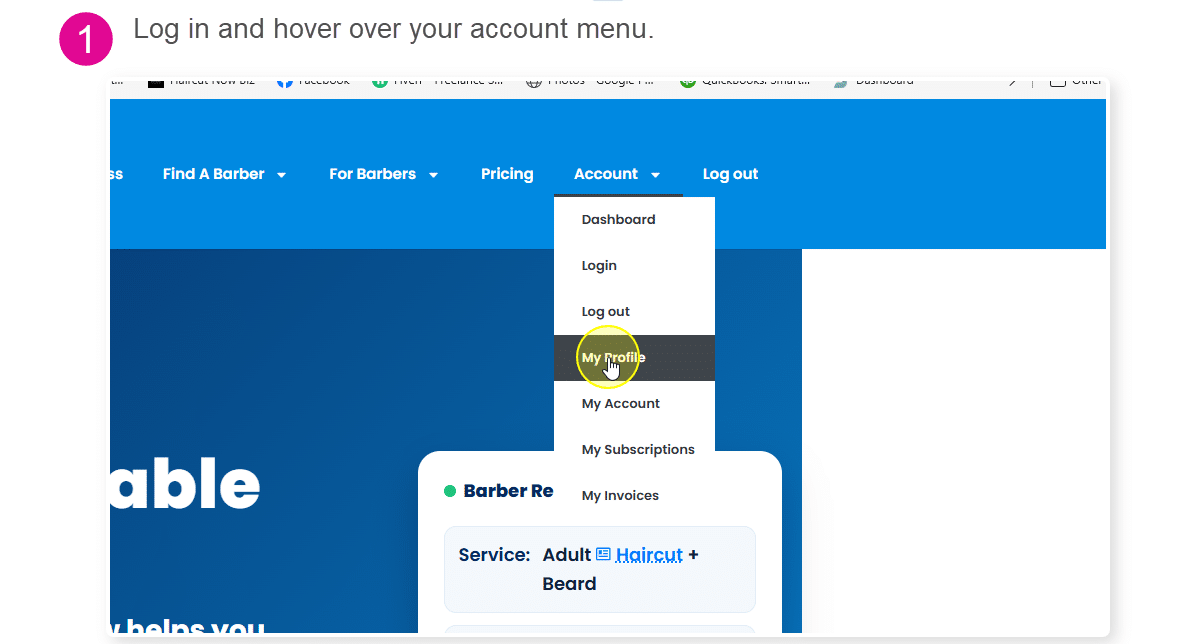
After logging in, hover over your account name in the top menu.
Then click Profile.
Step 2: Open Your Barber Listing #
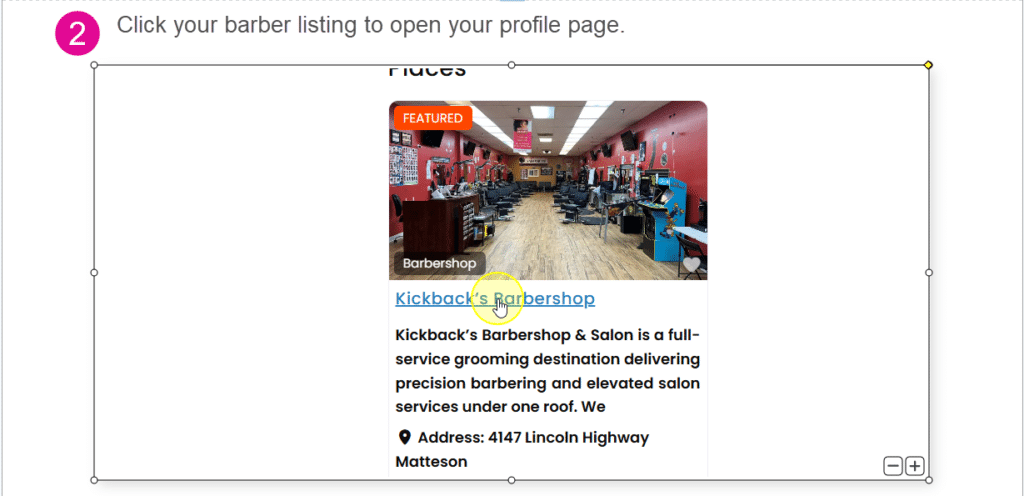
From your profile page, click your barber listing or shop profile.
This will take you to the public listing page where you can manage your profile settings.
Step 3: Open Manage Settings #
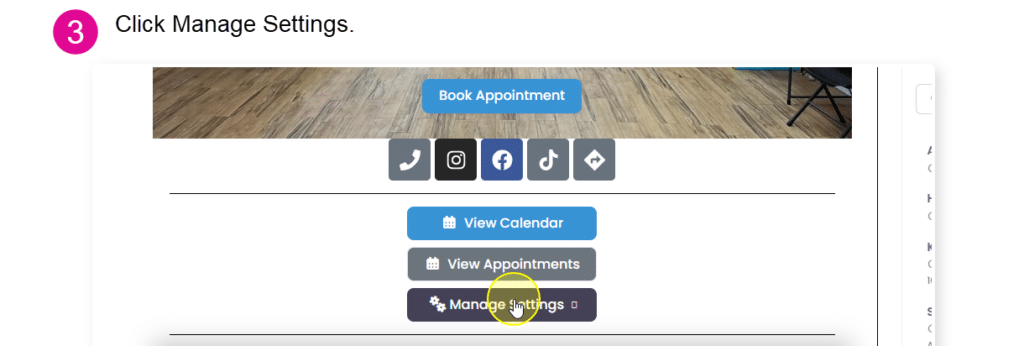
On your listing page, click Manage Settings.
This opens the management options for your listing.
Step 4: Open the Staff Section #
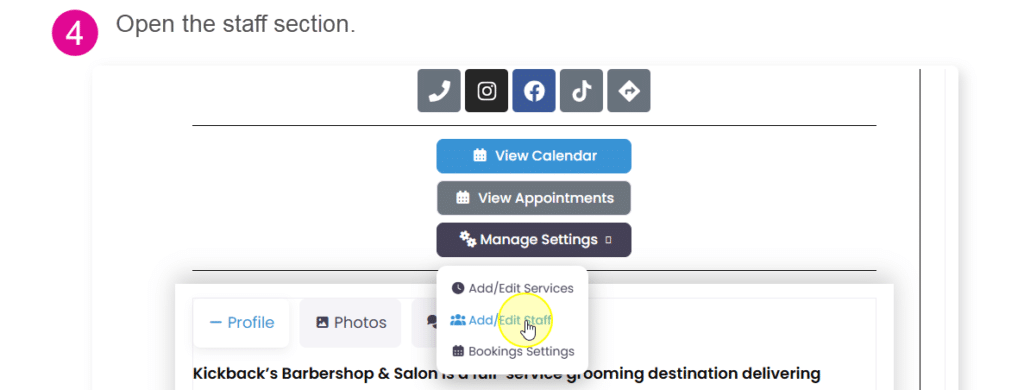
Inside the listing management area, click Add/Edit Staff.
Step 5: Add Staff #
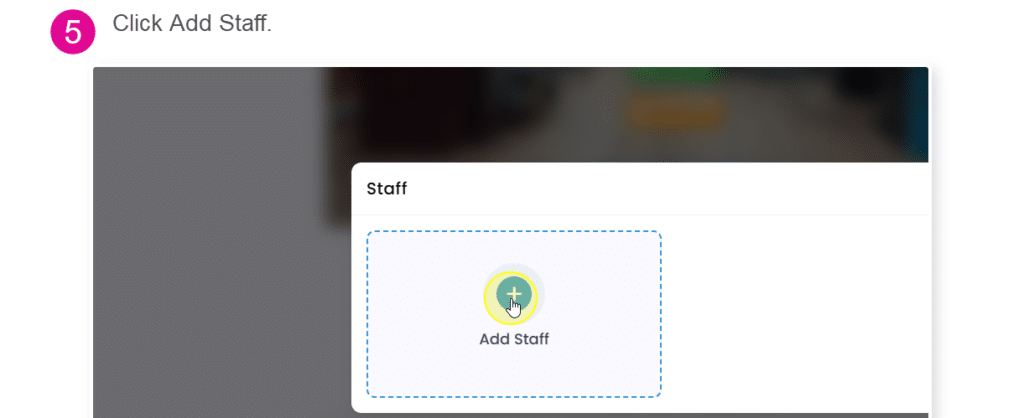
Click Add Staff.
A staff setup window will appear.
Step 6: Enter Staff Details #
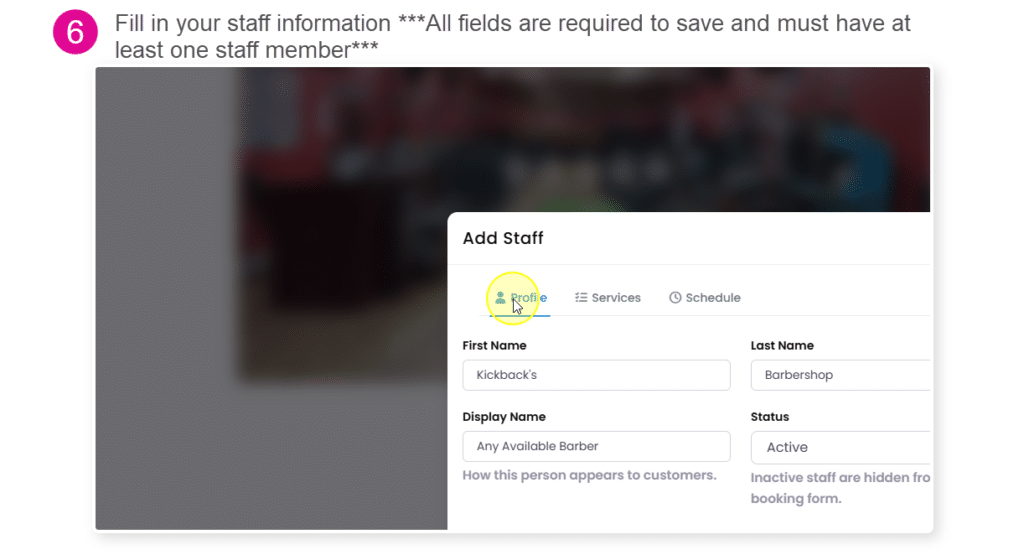
Add the staff member’s basic information. ***All fields in this section are required; the staff member will not be saved. You also must have a minimum of one staff member to enable appointments***
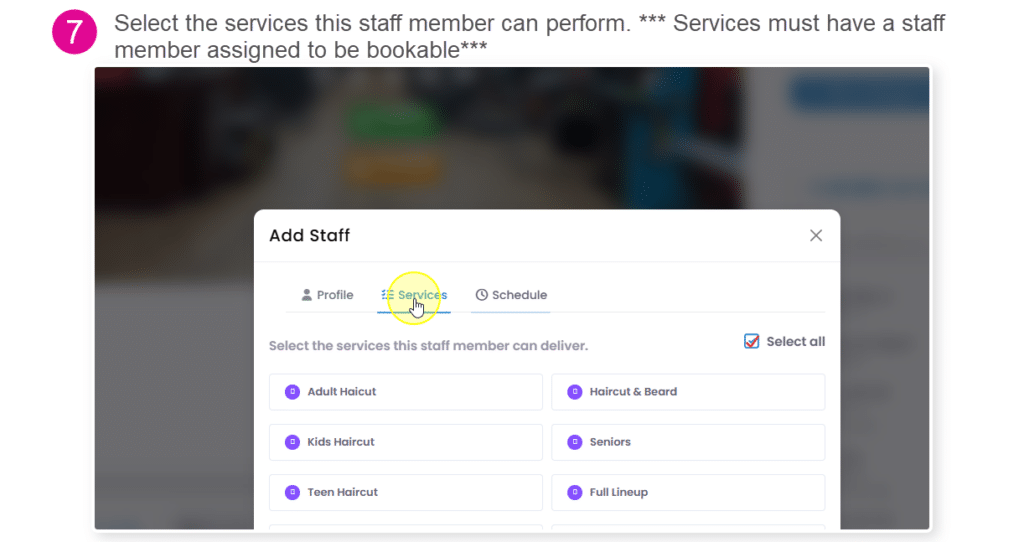
Step 7: Select The Staff Member Services #
Step 8: Choose Schedule #
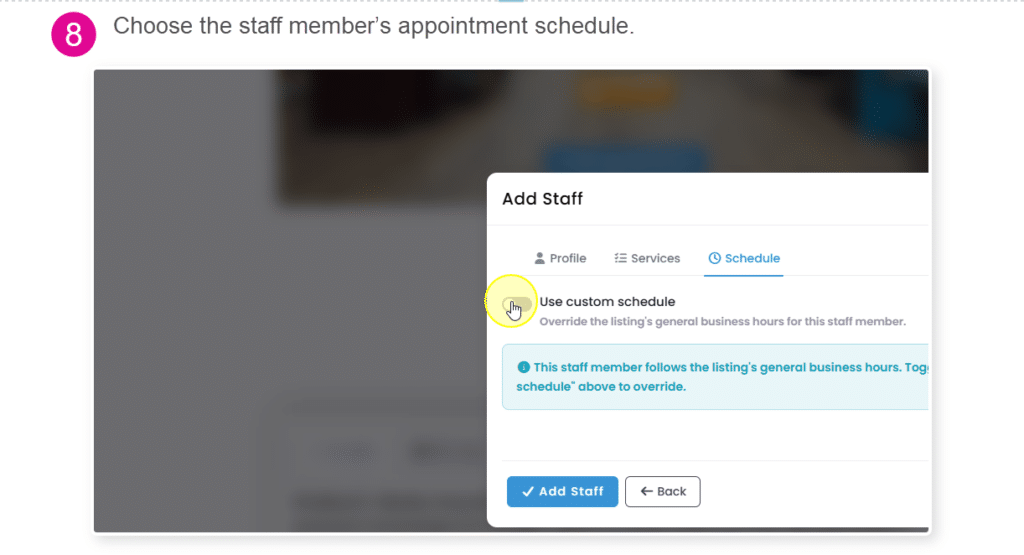
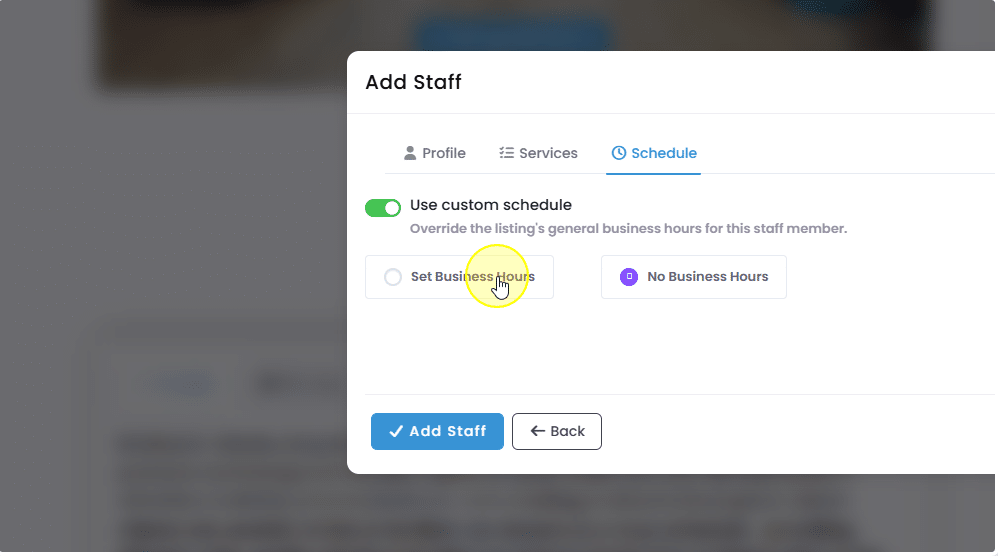
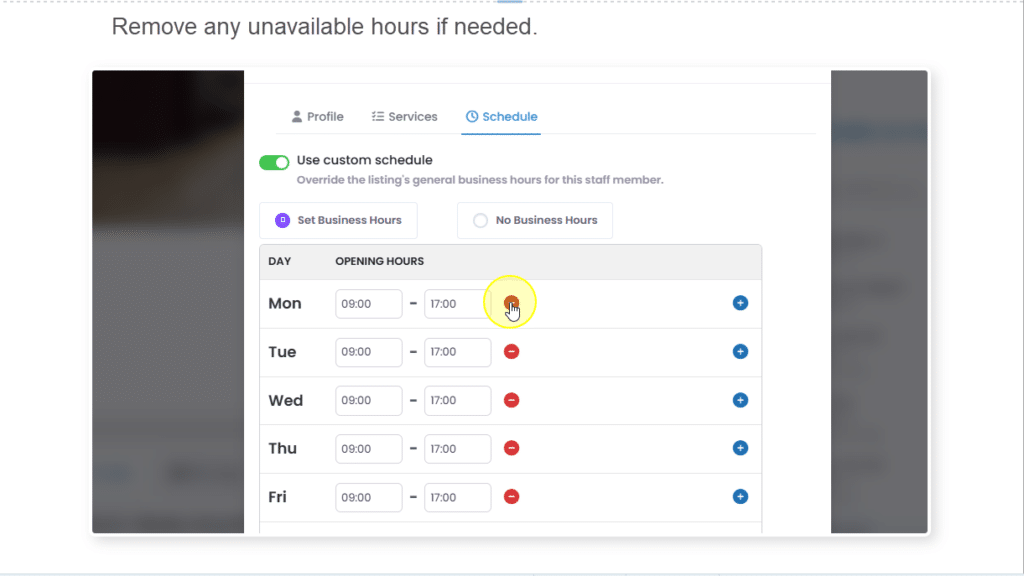
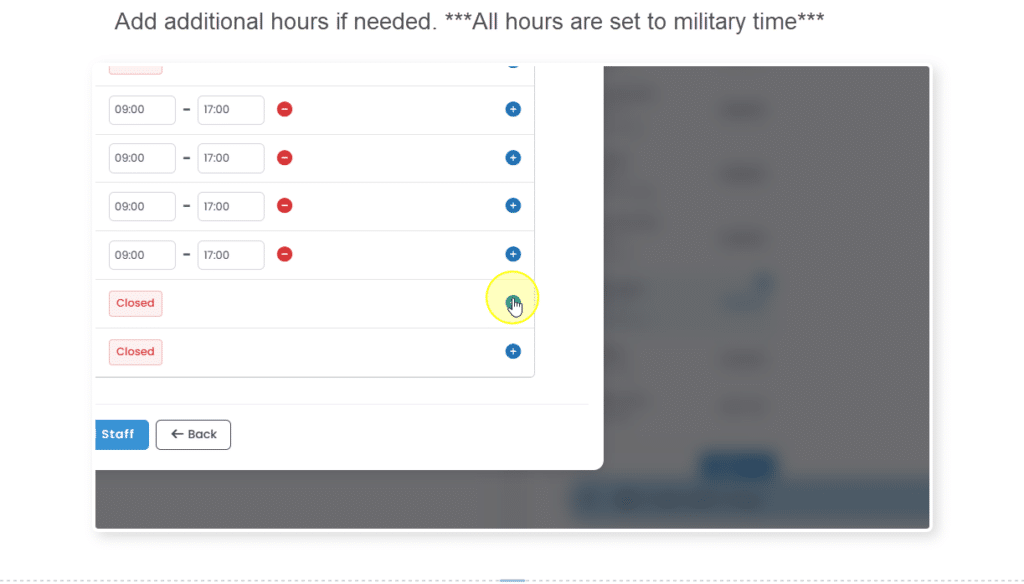
Choose the staff member’s available business hours.
You can use the default business hours or set custom hours for that staff member.
Make sure the hours match when the staff member is actually available for appointments.
Step 9: Save the Staff Member #
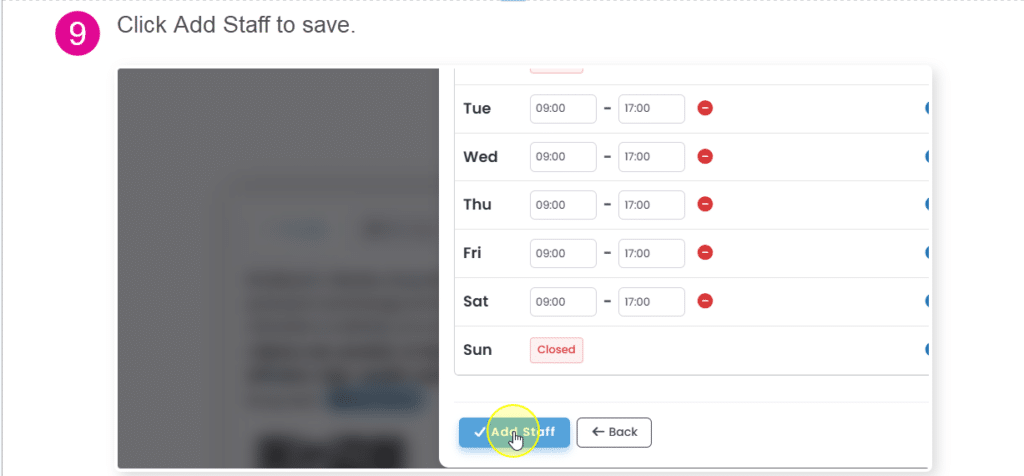
After the staff information, services, and hours are complete, click Add Staff or Save.
The staff member will now be connected to your appointment settings.
Important Notes #
If a staff member does not have services selected, clients may not be able to book that staff member.
If a staff member does not have available hours, they may not appear as available for appointments.
There must be at least one staff member with services and hours to activate appointment bookings
It’s best NOT to use our appointment bookings if you are also linking to a booking app.
If you’re a barbershop and don’t want to assign staff members, we suggest your display name be “Any Available Barber” and your First name be the name of your barbershop with the last name being “Barbershop”


