If you run a booth-rent shop, the weekly numbers that matter are usually the ones that tell you whether the floor is moving smoothly, whether walk-ins are being handled fairly, and whether rent is getting collected on time. The best barbershop operations metrics are simple enough to review in one sitting and specific enough to help you spot problems before they become missed revenue or frustrated renters.

For many owners, that means separating three different workflows: the walk-in queue, booked appointments in your own scheduling system, and rent tracking for independent chairs. Haircut Now’s Shop Operations bundle is built around that kind of separation, combining Walk-In Manager and Booth Rental Manager in one account for one location.

What a useful weekly scorecard should cover

A good weekly review does not need a giant dashboard. It needs a few numbers that answer practical questions: Are walk-ins moving? Are customers waiting too long? Are booked appointments filling the day? Are renters current on their balances?

For booth-rent owners and managers, a basic weekly scorecard usually includes:

  • Walkout rate for walk-in customers who leave before getting served
  • Average wait time or at least the wait pattern by busy day or hour
  • Booked appointment volume from your separate appointment system, if you use one
  • Rent balances and any partial or missing payments
  • Participation level for renters who are checked in and taking walk-in offers

The key is to review each number in the right bucket. A shop can have a healthy walk-in line and still have rent issues. It can also have steady booked appointments and still lose walk-ins if the queue is moving too slowly.

Track walkouts separately from normal traffic

Walkout rate is one of the clearest signs that your walk-in experience needs attention. If customers are leaving because the wait feels too long, the issue might be staffing coverage, slow turnaround, poor communication at the kiosk, or simply a busy day that needs better planning.

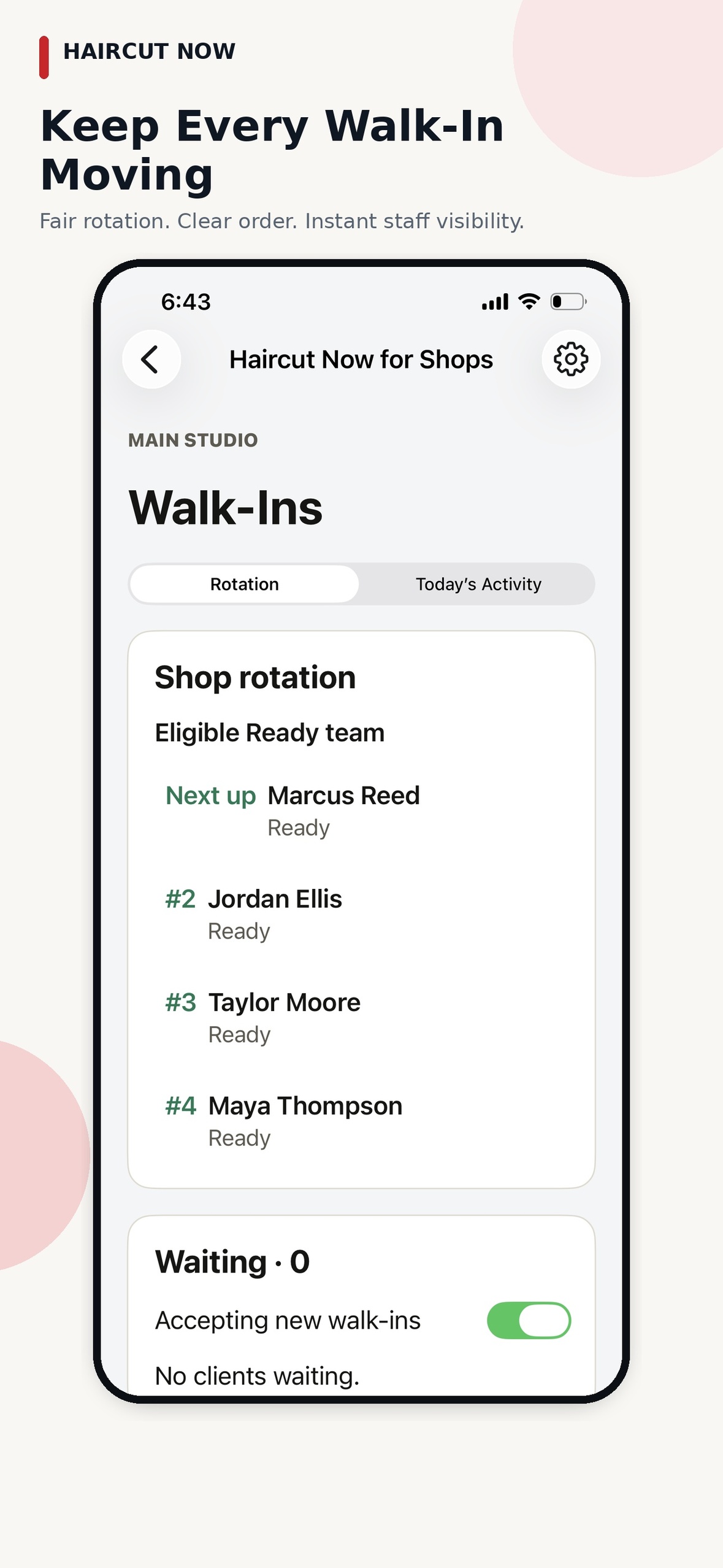
With Walk-In Manager, the shop owner sets up the system once, and then the daily walk-in rotation runs automatically. Customers enter their names at the kiosk, eligible staff members receive mobile offers in fair round robin order, and the system advances the queue as offers are accepted or passed. That makes it easier to review whether walkouts are happening because the shop is overloaded or because the flow needs to be adjusted.

General advice: if you see repeated walkouts on the same day or time block, compare that pattern with your busiest walk-in windows and your staffing coverage for those hours.

Measure wait time in the context of the whole day

Wait time is not just a customer-service number. It also tells you whether your chair flow matches demand. A short wait can mean the shop is moving well, but it can also mean you are underusing capacity if the lobby stays empty. A long wait may be acceptable during peak traffic, but it should not become the default.

Because Shop Operations includes walk-in management rather than shop-wide booking, it helps to look at wait time as its own metric instead of mixing it with scheduled services. That keeps your review honest. Walk-ins belong to the kiosk queue. Booked appointments belong to your appointment system. Rent belongs to your booth-rent ledger.

If you already use an external appointment tool, keep using it. The point is to compare the three activity streams side by side, not force them into one workflow.

Review booked appointments as a separate calendar metric

Booked appointments matter even in a booth-rent shop that relies heavily on walk-ins. They can show which days are pre-filled, which barbers are in demand, and whether your shop has a healthy mix of scheduled and same-day traffic.

But scheduled bookings should stay separate from walk-in queue numbers. A booked slot is not the same thing as a kiosk walk-in, and it should be measured differently. A weekly review might ask:

  • How many appointments were completed?
  • Which days had the strongest advance demand?
  • Did any booked services overlap with your busiest walk-in periods?

That separation matters because a shop can have good booked volume and still have weak walk-in handling. Or it can have a smooth walk-in line and uneven appointment demand. Looking at both helps you see the real shape of the week.

Watch rent balances every week, not just at month-end

Rent tracking is a different kind of metric from customer flow, but it deserves the same weekly attention. In a booth-rent shop, rent balances affect cash flow, planning, and accountability. Owners need to know who is current, who has made partial payments, and which agreements still need attention.

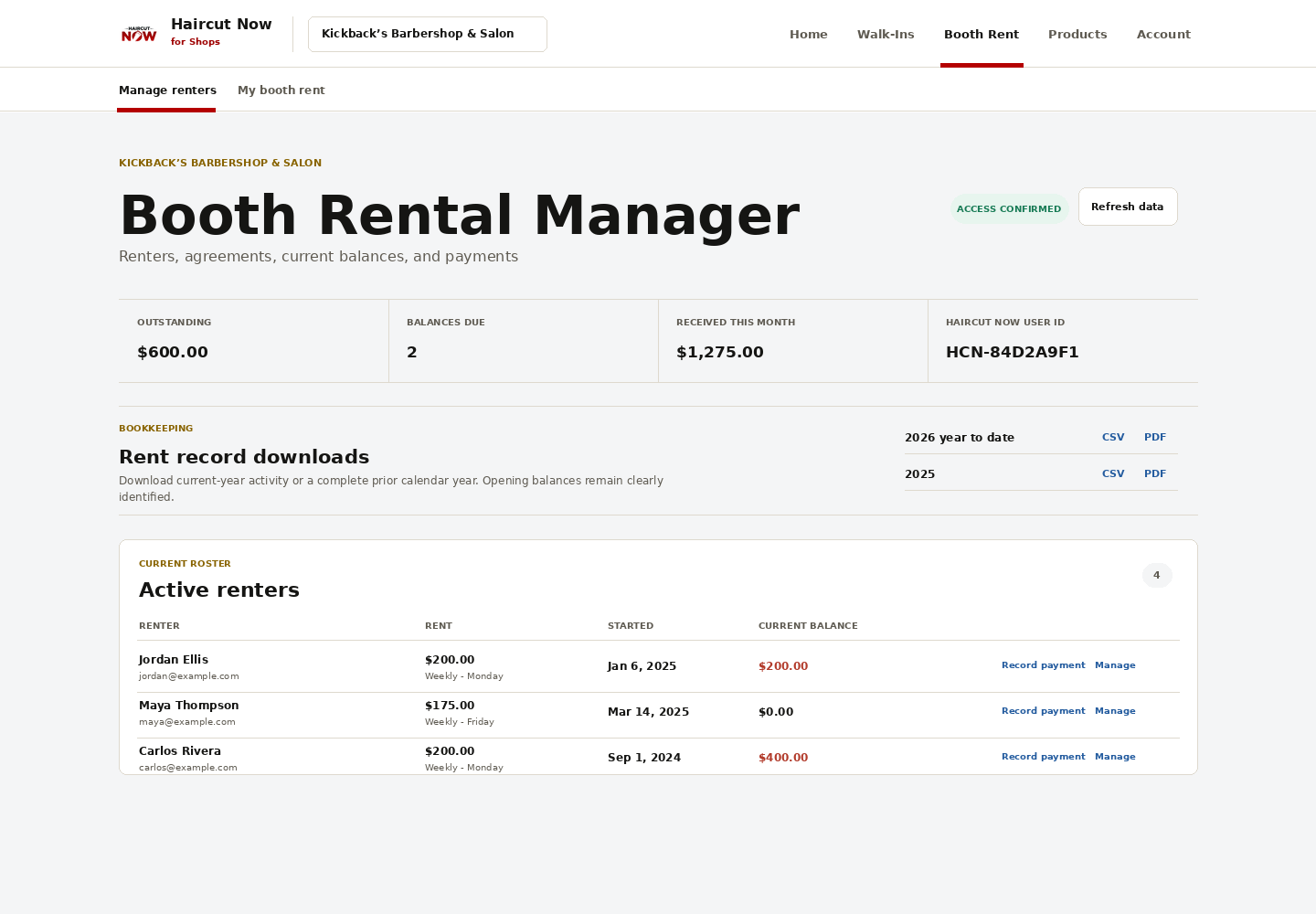
Booth Rental Manager is built to track booth-rent agreements, balances, and externally received payments. The renter has a private view, and the owner or manager confirms actual receipt. That makes the weekly review cleaner because you are looking at real balances instead of trying to reconstruct them from scattered notes.

If your shop has multiple renters, a weekly rent review can help you catch small issues before they turn into month-end cleanups. It is much easier to resolve a missing payment early than to sort out several weeks of backtracking later.

A simple weekly routine for shop owners

  1. Review the walk-in queue summary for volume, passes, and walkouts.
  2. Check wait patterns for the busiest times and days.
  3. Pull your appointment numbers from your separate booking system, if you use one.
  4. Confirm rent balances and note any partial or missing payments.
  5. Look for one action item for the next week, such as a coverage adjustment or a rent follow-up.

This routine is especially useful in shops where the owner does not want to spend the week manually coordinating every walk-in. Shop Operations is designed so the owner sets the system up, then the daily walk-in rotation keeps moving without regular receptionist-style work. That leaves you with a weekly review, not a constant operational burden.

How the bundle helps a booth-rent shop stay organized

Shop Operations combines Walk-In Manager and Booth Rental Manager in one one-location bundle, with unlimited applicable participating staff and renters. That gives an owner a practical way to separate the two most important shop jobs: keeping the walk-in floor moving and keeping booth-rent records clear.

It is also a good fit for shops with independent professionals who keep their own clients, tools, and payment methods. You can use the shared shop tools without trying to turn the whole operation into one unified employee system. That is often the real pain point for booth-rent owners: too many moving parts, not enough clean reporting, and too much manual coordination.

If your goal is to understand what is happening each week without micromanaging the floor, this bundle gives you the structure to do that.

See current Shop Operations pricing and start the free trial.

FAQ

What should a booth-rent owner measure every week?

At minimum, review walkout rate, wait time, booked appointment volume from your separate scheduling system, and rent balances for every renter.

Should I combine walk-ins and appointments in one metric?

No. Walk-ins, booked appointments, and rent tracking serve different purposes. Keeping them separate makes it easier to see where the shop is strong and where it needs attention.

Does Shop Operations include shop-wide booking?

Shop Operations combines Walk-In Manager and Booth Rental Manager. If you already use an independent appointment solution, you can keep it and still use the shop operations tools.

What is the fastest weekly win for most owners?

Start by reviewing walkouts and rent balances together. Those two numbers often reveal whether the issue is floor flow, customer wait experience, or collections follow-up.
If you’re heading to a barbershop as a walk-in, a little etiquette goes a long way. Good timing, clear communication, and patience help the visit feel smoother for you and the shop, especially when the barbers are balancing a steady flow of clients and different service lengths.

This guide covers the basics of barbershop walk in etiquette: how to arrive, what to expect while waiting, how to talk about your cut, and the easiest way to handle payment and follow-up questions.

Arrive ready, not rushed

For a walk-in visit, the most helpful thing you can do is come prepared. Before you leave, think through the haircut you want, how much length you’d like to keep, and whether you need a simple cleanup or a more detailed service. If you’ve been comparing styles, you can also bring a photo to show the barber.

General client advice:

  • Wear clothing that won’t get in the way of the cut.
  • Bring your preferred payment method.
  • Know whether you want a quick trim, fade, beard work, or another service.
  • Be honest about what you need, even if you’re not sure of the exact barbering terms.

Be respectful of the waiting process

Walk-in shops often serve people in the order the team is working through the day, so waiting is part of the experience. If the shop is busy, your patience helps keep things calm and organized.

Good waiting-room etiquette usually means:

  • Check in politely and give your name if the shop asks.
  • Stay nearby if you’re waiting for your turn.
  • Keep noise down and avoid crowding the service area.
  • If your plans change, let the shop know as soon as possible.

Some shops may give you a realistic estimate, but that can change as haircuts take different amounts of time. A barber may be finishing a detailed service, cleaning up, or moving to the next client before they can call you back.

How to explain the haircut you want

Clear communication makes a better result than trying to sound like an expert. You do not need a long speech; you just need to describe the look and mention anything important about your hair, beard, or past cuts.

Helpful details to share:

  • The style you want to keep or emulate
  • How short you want the sides and top
  • Whether you want clippers, scissors, or a blend of both
  • Any parts of the haircut that have bothered you before

If you use a reference photo, point out what you like about it. A photo of the shape, fade, fringe, or neckline can be more useful than just naming a style.

Payment and tipping: keep it simple

It’s smart to be ready for payment before your turn ends. Different shops accept different methods, so bring the option you expect to use and have a backup if possible. If you’re not sure about pricing, it’s fair to ask before the service begins.

General etiquette around payment includes:

  • Confirm the price if you need clarity before the cut starts.
  • Pay promptly when the service is finished.
  • If tipping is part of your routine, be prepared for that as well.

For clients comparing shops or trying to find a barber today, Haircut Now’s consumer barber directory can help you compare local profiles, services, and available details before you choose where to go.

Walk-ins, online requests, and booking are different

It helps to match your goal to the right path. A walk-in visit is a shop visit without a pre-booked appointment. Haircut Now also supports other discovery and request paths for clients, including standard appointments and same-day requests where eligible.

If you are trying to decide whether to wait, book, or send a same-day request, use the listing details and service information you see for that barber or shop. A profile may include photos, business details, reviews, booking options, and direct contact options depending on eligibility.

For a broader walkthrough on choosing a barber and finding someone available today, see Haircut Now’s guide to finding a barber available today.

What to do if your plans change

Life happens. If you need to leave the shop before your turn, let the team know courteously. If you arrive and realize you want a different service, it’s better to speak up early than after the cut starts.

That same courtesy applies after the appointment too. If you’re a repeat client, clear feedback about what worked can help future visits go more smoothly.

Quick walk-in etiquette checklist

  • Arrive with a clear idea of the cut you want.
  • Be patient while the shop works through clients.
  • Communicate simply and honestly about your style goals.
  • Have your payment ready.
  • Respect the team’s time if you need to change plans.

Good barbershop walk in etiquette is mostly about being prepared, polite, and easy to work with. When you show up ready to explain your haircut and respect the shop’s flow, you make the visit easier for everyone.

To explore local barbers, compare profiles, and choose the right next step for your haircut, start at Haircut Now.

FAQ

Do I need an appointment for a walk-in haircut?

No. A walk-in visit is for clients who show up without a pre-booked appointment. Whether a shop can take you depends on its current flow and the services it offers.

Should I bring a picture?

Yes, if you have one. A photo can make it easier to explain the shape, length, or finish you want.

What if I do not know barbering terms?

That’s fine. Describe the look you want in plain language, and point out what you want to keep or change.

Can I use Haircut Now to compare barbers before I go?

Yes. You can search local barber profiles and review the details shown for each listing before choosing your next step.

For a booth-rent shop, barber appointment reminders do more than reduce no-shows. They help keep booked chairs moving, protect the day’s flow for independent barbers, and cut down on last-minute calls that pull owners away from the floor.

If your shop uses booked appointments, walk-ins, and booth rent under one roof, the smartest reminder plan separates those three workflows. Shop Complete brings shop-wide booking together with Walk-In Manager and Booth Rental Manager, so your reminders can support the schedule without mixing up booking, walk-in, or rent tasks.

What reminder messages should do

A good appointment reminder has one job: help the client arrive on time and prepared. Keep it short, clear, and easy to scan on a phone.

  • Confirm the appointment and remind them of the date and time.
  • Identify the shop or barber so the client knows where to go.
  • Include simple arrival details such as “please arrive a few minutes early.”
  • Give a clear reply path if you want the client to confirm, reschedule, or ask a question.

General advice: the best reminder sounds like a helpful text from a busy shop, not a long policy notice. Clients usually respond better to one clean message than to multiple paragraphs.

When to send reminder messages

Timing depends on your clientele, appointment length, and how full your books usually run. For many shops, a simple sequence works well: an immediate confirmation, a day-before reminder, and a same-day reminder for high-demand slots.

1. Right after the booking is made

Send a confirmation as soon as the appointment is scheduled. This is the best time to set expectations while the client is still engaged. It works especially well for a booth-rent shop where each barber keeps their own client relationships and booking habits.

2. The day before the appointment

A reminder the day before gives clients time to adjust if something changed. This is often the most useful reminder for regular haircut appointments, color services, and longer services where prep matters.

3. A same-day reminder

Same-day reminders can help for busy weekends, peak hours, or appointments that are easy to forget. Keep the message brief and send it early enough to be useful, not disruptive.

General advice: if your shop books heavily on Fridays, Saturdays, or before holidays, you may want a stronger reminder cadence on those days than on slower weekdays.

Message structure you can reuse

Owners often do best with a simple template rather than rewriting every reminder from scratch. Here is a practical structure you can adapt for booked appointments:

  • Greeting: Hi, [Client Name]
  • Appointment details: You’re booked with [Barber Name] on [Date] at [Time]
  • Arrival note: Please arrive a few minutes early
  • Action: Reply if you need to reschedule

Example: “Hi Marcus, you’re booked with Jay on Tuesday at 2:30 PM. Please arrive a few minutes early. Reply if you need to reschedule.”

That kind of message is short enough to read quickly and specific enough to reduce confusion. It also supports the independence model in booth-rent shops, where each professional may manage their own regulars while the shop keeps the overall booking process organized.

How reminders differ from walk-in flow

Booked appointment reminders and walk-in handling solve different problems. Appointment reminders are for future scheduled visits. Walk-ins are handled through the separate kiosk and automated staff rotation in Walk-In Manager.

That matters operationally: a reminder message should support a reserved time on the calendar, while the walk-in system helps manage same-day customer flow. In a busy shop, keeping those workflows separate makes the day easier for both the owner and the barbers.

General advice: don’t use appointment reminder language to explain walk-in wait positions or queue status. Keep reminder texts focused on the booked service only.

How reminders fit with rent tracking

Reminder messages should stay separate from booth rent records. Booth Rental Manager is for rental agreements, balances, received payments, credits, corrections, and applicable late fees. It is a ledger workflow, not a client reminder workflow.

That separation helps owners keep the business organized. A barber can be reminded of a client appointment without tying that reminder to rent status, and rent follow-up can stay in the shop’s administrative process where it belongs.

General advice: if you manage both appointments and booth rent, use one communication style for clients and a different one for internal rent follow-up. That keeps the shop professional and avoids confusion.

Practical reminder tips for shop owners

  • Keep the wording consistent so clients know what to expect.
  • Match reminder timing to your busiest days rather than using one rigid rule for every appointment.
  • Use the barber’s name when relevant so the client immediately recognizes the booking.
  • Keep the message short and mobile-friendly.
  • Review no-show patterns and adjust timing if certain slots need an extra reminder.

For shops using Shop Complete, the advantage is having booking, walk-in management, rent tracking, and shop presence connected in one shop package. That makes it easier to keep reminder communication aligned with the way your chairs actually operate.

Example reminder templates

Standard booked appointment:
Hi [Client Name], you’re booked with [Barber Name] on [Day] at [Time]. Please arrive a few minutes early. Reply if you need to reschedule.

High-volume day reminder:
Reminder: your appointment with [Barber Name] is tomorrow at [Time]. Please plan to arrive on time. Reply here if anything changed.

Short same-day reminder:
Today’s reminder: [Barber Name] at [Time]. See you soon.

These examples work because they are direct, readable, and easy to personalize for a shop that serves both recurring regulars and new walk-in clients.

FAQ

What should a barber appointment reminder include?

At minimum, include the client name, barber name, appointment date and time, and a short action line if rescheduling is needed.

How often should a shop send reminders?

Many shops use a confirmation right after booking, then a day-before reminder, and sometimes a same-day reminder for busy periods. The right cadence depends on your booking patterns.

Are walk-ins handled the same way as booked appointments?

No. Walk-ins are handled through the separate kiosk and automated staff rotation in Walk-In Manager. Appointment reminders are for scheduled bookings.

Does booth rent tracking belong in reminder messages?

No. Rent tracking belongs in Booth Rental Manager, which handles rental agreements, balances, payments, credits, corrections, and related ledger details.

If you want shop-wide booking plus walk-in automation and rent tracking in one place, see Shop Complete.

When a customer walks into Kickback’s Barbershop & Salon in Matteson, Illinois, the shop has to know who’s waiting and who’s next in the rotation. Owner Derrick Marshall oversees a shop of 12 barbers, each with their own clients and ways of working. Kickback’s uses Haircut Now’s Walk-In Manager, Booth Rental Manager, and Shop Booking for the work they share. Derrick says the shop began using the tools at launch. Kickback’s shop profile

Disclosure. Derrick Marshall owns Kickback’s and founded Haircut Now. The workflow changes and outcomes described here come from his firsthand account of using the products in his shop. Ownership disclosure on Haircut Now

Kickback’s has served Matteson and the Chicago South Suburbs since 2015. The shop operates on a booth-rental model, with independent professionals responsible for their own services, prices, and schedules. Its address is 4147 Lincoln Highway, Matteson, Illinois. Kickback’s website · Shop terms

Walk-ins moved from a paper list to a visible rotation

The old system used a paper sign-in sheet to establish which barber had arrived first. Derrick says people’s names sometimes stayed on the sheet for days and the turns went out of date. Some barbers repeatedly took walk-ins out of order. The disagreements were daily, and Derrick often got calls to settle them.

With Walk-In Manager, barbers can see the rotation, who is next, and who received the previous walk-in. When a customer checks in by name, the team can see who is waiting and greet that person by name. Derrick says that helps staff acknowledge customers even when everyone is busy. He describes arguments over the rotation as “basically zero.” That is Derrick’s observation from running the shop. Walk-In Manager

Booth-rent payments are recorded from the phone

Derrick previously adapted general invoicing software for booth rent and used text messages to handle questions about balances and overdue payments. He says recording a payment sometimes took two or three days.

Today, when Derrick receives a payment, he can record it from his phone. A renter can also report that they paid, which gives Derrick an entry to verify against what he actually received. Renters can look up their balances, access agreements, and download their payment histories. Derrick can send reminders, add a late fee when appropriate, and configure introductory schedules. For example, he can set half rent for the first four weeks, then have the regular amount come due. Renters pay through the shop’s existing methods, and Booth Rental Manager records the payment. Booth Rental Manager

Customers can book the shop or go directly to their barber

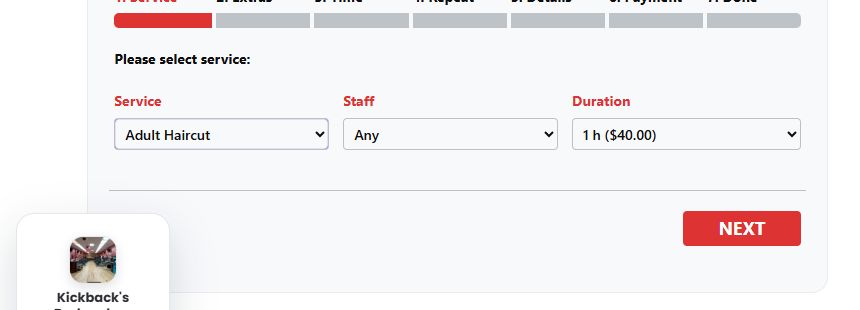
A first-time visitor may know Kickback’s by name without knowing whom to book. From the shop’s website, a customer can open its Haircut Now listing, choose a service, and select a participating barber or Any Available. In a live check, choosing Adult Haircut brought up the service, staff choice, and duration before the time and customer-details steps. Kickback’s public booking listing

Kickback’s live booking screen showing Adult Haircut, Any staff, and one-hour duration
The public shop booking flow, captured November 22, 2026.

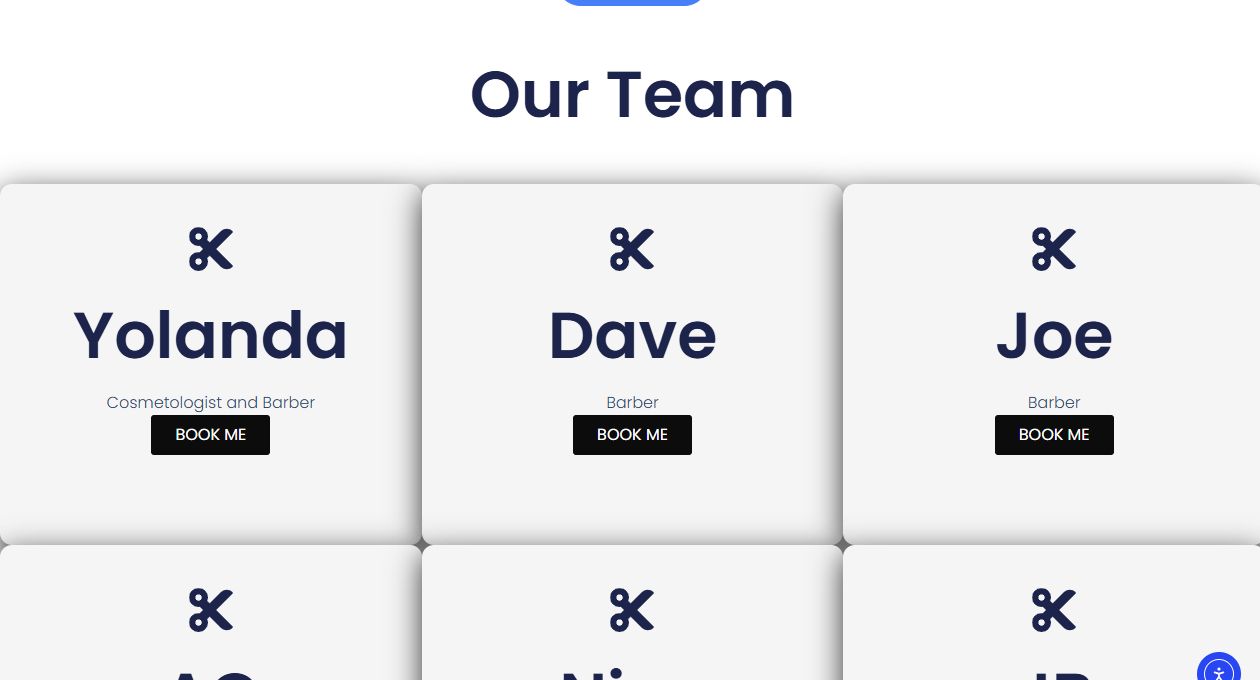
Clients who already know their barber can still use the barber’s own booking route. Kickback’s team section links to both Booksy and theCut, and other providers can be contacted directly. Derrick says barbers review shop bookings alongside their personal schedules and contact the customer if an appointment needs adjusting. Outside appointments stay in the booking tools where they were made. Kickback’s team and booking options

Kickback’s public team section showing separate Book Me buttons for three providers
The public team section, captured November 22, 2026. The individual links coexist with shop booking.

For Derrick, the shared tools give the team three places to check what used to be scattered across paper, messages, and individual booking links. Staff can look up the next walk-in, renters can look up their payment records, and customers can start a booking from the shop’s website. Explore Shop Complete

If you’re choosing software for an independent chair or the whole shop, use our barber-app guide to compare booking tools, walk-in workflows, and pricing.

When your chair fills up through word of mouth, walk-ins, text messages, and repeat regulars, the fastest way to lose momentum is a stale contact card. A digital barber contact card QR code gives clients one permanent place to save your number, open your profile, and reach you again when your details change.

For independent barbers, that matters because your business moves with you: a new suite, updated hours, a fresh booking link, or a better way to reach you should be easy for clients to find. The goal is simple—make it easier for people to keep your contact details current without printing new cards every time something changes.

Why digital cards work better than paper cards

Paper business cards still have a place, but they are static. Once they are printed, any change to your phone number, address, booking link, or social profile means the old cards are already outdated. Clients may keep them in a drawer, toss them in a bag, or type the wrong details later.

A digital barber contact card solves that problem with one permanent public URL and QR code. Clients can open it in a regular browser, then save your contact, call you, text you, email you, or share your details without installing an app. When you update your address or other information on the card, the same link and QR code keep pointing to the newest version.

That difference is especially useful if you work booth rent, move between suites, or want one place that stays current across flyers, mirrors, counters, business cards, and social bios.

How the contact-saving flow works

The basic idea is easy for a client to follow:

  1. The client scans your QR code or opens your link.
  2. Your digital card loads in a browser.
  3. The client taps to save your contact or use one of the contact actions available on the page.
  4. If you later update your details, the same public page shows the newer information the next time someone opens it.

One important detail for everyday use: if a client already downloaded your contact to their phone, and you later change your details, they may need to save your contact again so their phonebook reflects the latest version. That is normal for a saved contact entry. The live card stays current at the permanent URL, but an old saved contact on a phone is still just the older saved record until the client updates it.

Basic vs. Pro: what changes for independent barbers

Haircut Now offers a free Basic card for an eligible claimed individual listing. That includes a permanent link, one-tap downloadable contact, call, text, email, share, and a downloadable PNG QR code. The same card at the same link can show updated details when you edit your information.

A Basic card may also show the Haircut Now directory booking button when the barber has an eligible paid individual marketplace listing. If not, it remains contact-oriented, which is still useful for keeping your client communication simple and consistent.

Card Pro is a separate option for barbers who want more customization and sharing flexibility. It includes:

  • Secure external booking links such as Booksy, The Cut, StyleSeat, Square, Haircut Now, or a website
  • Custom logo, photos, colors, bio, and services
  • Website and social links
  • Engagement insights
  • Downloadable SVG QR code

Pro is available standalone without a marketplace listing and is priced at $4.99/month. The annual Pro price published for the barber card is $49.90/year. That makes it a practical upgrade for barbers who want a stronger brand presentation on signs, printed materials, or an NFC tag while keeping one permanent public card link.

How to keep your card accurate over time

General maintenance is simple, and it pays off fast. If you move shops, change your suite number, update your business hours, add a new booking platform, or refresh your service list, make the change on the digital card as soon as possible. Because the same public URL and QR code stay active, you do not need to replace your whole contact system every time your business evolves.

Here are a few practical habits independent barbers can use:

  • Use the same card link everywhere you promote yourself so clients learn one reliable place to find you.
  • Check your displayed phone number, address, and booking link after any business change.
  • Update your printed cards, sign, or QR display only when you want the physical material to match your latest details.
  • If you switch phone numbers or booking platforms, make that update on the live card first.
  • When a regular client asks for your info, point them to the same link or QR code instead of handing out a fresh paper card every time.

This approach saves time for the barber and reduces confusion for the client. It also helps when you keep your own customers, your own booking service, and your own payment method as an independent professional.

Best places to use your digital barber contact card QR code

A strong card works best when clients can see it in the places they already look for you. Common uses include:

  • Front desk or mirror signage
  • Business cards and take-home flyers
  • Instagram bio or other social profiles
  • Appointment reminder messages
  • Printed booth-rent station signs
  • NFC tags for quick tap access

If you are trying to make your contact info easier to keep and easier to share, the QR code becomes more than a shortcut. It gives people one place to return to whenever they need your updated details.

How to choose between Basic and Pro

Choose Basic if you mainly want a clean, permanent digital contact card with a downloadable PNG QR and simple contact actions. It is a solid fit for a barber who wants a dependable public link and a straightforward way for clients to save their details.

Choose Pro if you want deeper branding, external booking links, an SVG QR, and more control over how your card presents your services online and offline. For many independent barbers, Pro makes sense when the card is doing double duty as both a contact hub and a polished mini landing page.

Either way, the main value is the same: clients get one current place to find you, and you get a cleaner way to keep your business details organized.

FAQ

Do clients need an app to use the card?

No. Clients can open the card in a regular browser and use the contact options there.

Will old saved contacts update automatically when I change my details?

No. The live URL and QR code show the updated information, but a contact previously saved to a phone may need to be saved again.

What comes with the free Basic card?

For an eligible claimed individual listing, Basic includes a permanent link, one-tap downloadable contact, call, text, email, share, and a downloadable PNG QR code.

What does Pro add for an independent barber?

Pro adds custom branding options, external booking links, website and social links, engagement insights, and a downloadable SVG QR code.

Can I use Pro without a marketplace listing?

Yes. Pro is available standalone without a marketplace listing.

If you want one permanent card that clients can return to anytime, start here: digitalbarbercard.com.

In a booth-rent shop, a fair walk-in rotation has to work for more than one service type at once. A trim, a beard lineup, and a full haircut may all belong in the same day’s flow, so the owner needs a system that keeps the queue moving by service eligibility without creating extra daily management.

Walk-In Manager is built for that kind of shop rhythm: clients enter their name at the kiosk, the system starts a fair round-robin among checked-in team members, and the next eligible professional gets the offer on their phone or browser. For owners searching for a practical walk in queue by haircut service setup, the key is learning how to organize service categories so the right professionals can receive the right walk-ins.

Walk-In Manager team rotation showing the next-up team member and waiting queue
Example of a Walk-In Manager fair team rotation screen.

Why service categories matter in a walk-in shop

Not every walk-in should land in the same rotation. In a real shop, service categories help you sort which professionals can take which type of client, especially when some chairs handle certain services more efficiently or by preference. Walk-In Manager supports optional owner-created service categories and staff eligibility so the queue can stay fair while still matching the service to the right professional.

That matters for booth-rent owners because your team may be independent, but the shop still needs orderly flow. You are not trying to run a daily dispatch board by hand. You are setting up a structure that helps the system distribute walk-ins among eligible, checked-in professionals as clients arrive.

How the fair walk-in rotation works

Once your shop setup is in place, the daily process is simple:

  1. Team members check in when they arrive. Their check-in order begins the fair automated round-robin.
  2. The client enters a name at the kiosk. The kiosk is browser-based and can run on an Apple or Android tablet, floor stand, or countertop setup.
  3. The next ready, eligible professional receives a mobile offer. That offer appears in the phone or browser home-screen app.
  4. The professional taps Accept or Pass. If they pass, their position is not erased from the rotation.
  5. If an offer is ignored, the system moves on. The app marks the professional Busy, and they tap Ready again when they want to resume receiving offers.

This is what makes the workflow useful for independent shops: the system keeps rotating without you standing at the front desk and manually reassigning every name.

How to think about service categories in practice

General shop advice: if your location offers multiple service types, write down clear rules before you launch the queue. A category setup works best when staff know exactly which services they can receive and which ones should route elsewhere. That keeps the client flow cleaner and helps reduce confusion at the chair.

In a walk-in shop, service categories can be especially helpful when:

  • Some professionals specialize in certain services
  • One service type usually takes more time than another
  • You want to separate quick walk-ins from more specific services
  • Your team wants a simple way to stay aligned on eligibility

Walk-In Manager gives owners the tools to set those categories and define staff eligibility. From there, the system uses the checked-in team and the service setup to keep offers moving in the right order.

What owners gain from a fair service-based queue

A fair rotation is not just about balancing opportunity. It also reduces day-to-day friction. In a booth-rent environment, nobody wants the front desk to become a negotiation point every time a client walks in. When the queue is organized by eligibility and service type, the shop can stay calmer and more predictable.

For owners, the value is in the time saved after setup. The system is designed to operate independently, so you are not expected to babysit the queue all day. The walk-in flow keeps moving even when someone passes on an offer or doesn’t answer right away.

That gives you a practical advantage if you manage a location without a receptionist. It also helps when the shop is busy and you would rather focus on the business than on manually deciding who should be next.

Handling missed offers and walkouts without losing the flow

In a live shop, not every offer gets answered instantly. Walk-In Manager handles that automatically. If an eligible professional does not respond, the system waits for the owner-configured unanswered-offer timeout of 30, 60, or 90 seconds, then marks that person Busy and continues the queue. When a client leaves, the barber can tap Walked Out, and the system handles the queue from there.

That matters when you are managing services with different speeds and different demand levels. A fair rotation still needs to keep the line moving, even if the next eligible person is finishing up, stepped away, or misses an alert. The system is designed to keep the schedule from stalling.

Using reports to understand service trends

Walk-In Manager also includes reporting that can help you review what happened across the day or over time. Reports cover walk-ins, completions, walkouts, wait times, and service trends. It also includes configurable minimum service time and review/rebooking prompts.

For owners, that can help answer practical questions such as:

  • Which service categories are seeing the most walk-ins
  • How often clients leave before being served
  • Which times of day create the longest waits
  • Whether certain services are moving faster or slower than expected

Those insights are useful when you want to refine service categories, staff eligibility, or shop staffing habits over time.

Best setup tips for a booth-rent shop

If you are planning your own queue structure, keep the setup simple at first. A clean launch usually works better than a complicated ruleset that nobody remembers.

  • Start with the services you actually offer. Build categories around real walk-in demand.
  • Set eligibility clearly. Make sure each professional is matched to the services they can take.
  • Keep the kiosk easy to use. Clients should only need to enter their name.
  • Confirm team check-in habits. The rotation works best when professionals check in as they arrive.
  • Review the reports after the first few days. Use the data to adjust service categories if needed.

Those are general shop-management best practices, and they fit especially well in an independent-chair environment where each professional may keep their own booking tools and customer relationships.

Who this setup is best for

Walk-In Manager is built for booth-rent and commission shops with one location and unlimited applicable team members. It is a strong fit when the owner wants a receptionist-free walk-in process and a fair rotation that respects service eligibility. It is also useful when professionals need a simple way to stay in their own rhythm while still sharing a shop-wide queue.

If your goal is to organize walk-ins by service type without turning the shop into a manual dispatch desk, this kind of setup gives you a cleaner operational lane.

Learn more here: Walk-In Manager

FAQ

How does Walk-In Manager handle different service types?

The owner can create optional service categories and set staff eligibility. When a client enters a name at the kiosk, the system uses the fair round-robin rotation to offer the walk-in to the next eligible checked-in professional.

Does the owner have to assign every walk-in manually?

No. After initial setup, the system is designed to operate independently. Team members check in when they arrive, and the queue advances automatically through eligible professionals.

What happens if a professional passes on an offer?

The professional can tap Pass, and their position in the rotation is not erased. The queue continues automatically.

Can the shop track walk-ins and service trends?

Yes. Reports cover walk-ins, completions, walkouts, wait times, and service trends, with additional configurable prompts and minimum service time settings.

Is this useful for booth-rent shops?

Yes. It is built for booth-rent and commission shops, especially where the owner wants a fair, automated walk-in flow without daily queue management.

A strong booth rental agreement protects both sides of the chair: the owner has clear documentation, and the independent barber or stylist knows exactly what was agreed to from the start. For a busy shop, the best barbershop booth rental agreement checklist is less about legal jargon and more about documenting the terms that keep rent, access, and expectations organized week after week.

Booth Rental Manager is built for that day-to-day recordkeeping. An owner or authorized manager can set up rental agreements, track balances and payments, and give each renter a private view of the charges and records tied to their space. That makes it easier to stay consistent without turning your shop into a paperwork pile.

Booth Rental Manager ledger displaying renter rent balances and payments
Example Booth Rental Manager owner dashboard and renter balance ledger.

What to document before the first payment is due

When a booth renter moves into your shop, the agreement should answer the practical questions that come up later. General advice: keep the terms short, specific, and easy to reference. The goal is to avoid confusion about what was included, when rent is due, and how the ledger should be interpreted.

  • Rental amount for the agreed billing cycle
  • Start date for the agreement
  • Billing frequency, such as weekly, biweekly, monthly, or one-time
  • Included terms, such as station use, chair access, or other shop-specific arrangements
  • Due date expectations and any late-fee terms you choose to apply
  • What is considered payment proof for your shop’s process
  • How partial payments, credits, or corrections will be recorded

A rent ledger works best when the written agreement and the recorded balance match the same terms. If the shop agrees to a weekly payment schedule, then the ledger should reflect that schedule from the beginning instead of relying on memory.

Why a clear ledger matters in booth-rent shops

In a booth-rent model, each renter often keeps their own customers, booking tools, and payment methods. That independence is part of the appeal, but it also means the shop owner needs a simple way to track what is owed without controlling the renter’s business flow. A shared rent ledger gives you a single place to document the financial side of the arrangement while still preserving the renter’s independence.

With Booth Rental Manager, an owner can see shop-wide balances, outstanding amounts, credits, payments, and recorded adjustments in one place. That is especially useful when several independent renters are on different payment schedules. Instead of juggling texts, notes, and memory, you can check the ledger and see who is current, who has a credit, and which agreement needs attention.

A practical booth rental agreement checklist for owners

Use this checklist as a starting point when you bring on a new booth renter or refresh an old agreement.

1. Identify the renter and the space

Document the renter’s name and the station or booth they are using. If your shop has multiple chairs or work areas, make sure the agreement clearly ties the renter to the correct space.

2. Write the rent terms in plain language

Note the amount due and how often it is due. Booth Rental Manager supports weekly, biweekly, monthly, and one-time rental agreements, so you can match the ledger to the schedule you actually use.

3. List the terms that affect the rental

If the renter has access to certain amenities or follows shop-specific expectations, document those terms clearly. General advice: avoid vague wording like “standard use” if you really mean specific access, hours, or shared areas.

4. Capture the start date and first due date

Start date and due date are easy to confuse later if they are not written down. Record both so there is no question about when the agreement began and when rent begins appearing in the ledger.

5. Decide how acceptance will be confirmed

Some owners keep a signed paper copy, some use a digital acknowledgment, and others store both. The important part is that you know how the renter accepted the terms and where that proof lives for future reference.

6. Define how payments will be recorded

Your shop may receive cash, Zelle, Cash App, Apple Pay, Square, or other methods. Booth Rental Manager records the payment method and the amount received, so your ledger can reflect what was actually paid rather than relying on scattered notes.

How to use the ledger without creating extra work

The best ledger workflow is the one your shop will actually maintain. Keep the process simple and repeatable:

  1. Create the rental agreement with the amount, start date, and terms.
  2. Review the balance when a payment is received or reported.
  3. Record the payment amount and method in the ledger.
  4. Apply partial payments, credits, corrections, or late fees when needed.
  5. Check the renter’s private view if they report a payment for your confirmation.
  6. Export statements when you need bookkeeping records.

That workflow helps the owner stay organized without becoming the bottleneck. Renters can also view their own agreement details, charges, recorded payments, and balances on a private, mobile-friendly screen, which reduces back-and-forth questions about what is owed.

Why renters reporting payments can help the shop

In a booth-rent setup, a renter may want to let the owner know a payment was made without turning the process into a lengthy exchange. Booth Rental Manager lets renters report payments for owner or manager confirmation, while the owner can also record payments directly. That keeps the record centered on what was received and confirmed, not on a guess.

This is useful when your shop handles multiple payment methods or when a renter pays outside normal hours. The owner still confirms the actual receipt; the ledger just makes it easier to match the report to the record.

Bookkeeping benefits owners actually feel

Documentation is not only about collecting rent. It also helps you stay ready for bookkeeping and end-of-period review. Booth Rental Manager can export current-year or prior-year statements as PDF or CSV, which is helpful when you want a clean record for your files.

For a booth-rent owner, that means you can review balances, see payment history, and keep a clean paper trail without building your own spreadsheet from scratch. The platform also supports unlimited renters at one shop or location without per-renter charges, which is useful if your booth count grows.

If you want to see the product for yourself, visit Booth Rental Manager.

What not to leave out of a booth rental agreement

General advice: avoid agreements that sound complete but still leave room for arguments later. A few missing details can create confusion fast, especially in a multi-renter shop.

  • Unnamed due date or billing cycle
  • Unclear start date
  • No note about accepted payment methods
  • No process for partial payments or corrections
  • No documented way to confirm acceptance of terms
  • No record of late-fee handling, if your shop uses one

When those items are captured up front, the ledger becomes much easier to trust. That is the real value of a good agreement: it supports the daily business relationship instead of distracting from it.

FAQ

What is the most important part of a booth rental agreement checklist?

The most important items are the rental amount, start date, due date, and the terms that define what the renter is paying for. Those details should match the ledger.

Does Booth Rental Manager collect rent for the shop?

No. It records rent agreements, balances, payments, credits, and adjustments. The renter keeps paying through their existing method, and the owner or manager records what was received.

Can renters see their balance?

Yes. Renters have private, mobile-friendly access to their agreements, charges, recorded payments, and balances.

Can I track partial payments and late fees?

Yes. The ledger supports partial payments, credits, corrections, and applicable late fees.

Is this helpful for one shop chair or a larger booth-rent location?

Yes. The product is designed for independent booth-rent barbershops and salons, and it supports unlimited renters at one shop or location.

Next step: If your shop needs a cleaner way to document rent terms and keep payment records organized, Booth Rental Manager gives you a simple place to manage the ledger without changing how independent renters do business.

If you want to manage barber profile on phone while still keeping your independent booking setup in place, Haircut Now Biz gives you a practical mobile workflow for the parts you update most often. You can handle your profile photo, haircut gallery, and supported listing details from the app, then move to the website when you need more advanced settings.

That makes it a useful fit for booth-rent barbers and independent stylists who want to keep their personal brand current without spending shop time on admin. The key is simple: start in the place that is easiest for the task, and let your Haircut Now website listing and Biz app stay connected.

Update your barber profile from the phone you already carry

Haircut Now Biz is the free barber-facing iPhone and Android app tied to your individual Haircut Now account and listing. If you already have an existing listing, you can sign in and link or claim it rather than creating a duplicate. If you are starting fresh, you can begin on the website by creating or claiming your individual listing, or you can sign up in Biz and complete your profile from there.

For day-to-day edits, the app is built for the parts of your profile that change often:

  • Profile photo updates
  • Haircut gallery updates
  • Supported listing fields that sync between the app and the website

That is especially helpful if a client asks for your latest work, or if you want your profile to match your current style and branding after a fresh cut or a new photo session. Instead of waiting until you are back at a desktop, you can keep your online presence current from your phone.

How the website and Biz app stay connected

Haircut Now is set up so your individual listing and connected Biz account can work in both directions. In practical terms, that means changes made in supported fields can sync between the app and the website within plan and feature limits.

For independent barbers, that connection matters because it reduces duplicate admin. You are not rebuilding the same profile from scratch in two places. If you update a supported detail in the app, it can appear on the website. If you update a supported detail on the website, it can carry back into the connected account experience.

Best practice: if you are already an existing user, sign in and claim or link your account first. That helps keep your listing and your account history organized in one place.

Use the app for the essentials, then open the website for advanced settings

Inside My Business, you can manage your profile photo, haircut gallery, and other supported listing fields. When you need advanced or web-only settings, the full website opens for those edits.

This split is useful because it keeps the mobile workflow focused on fast updates, while the website handles the deeper setup work. A barber who is between clients may only need to swap a photo, refresh a gallery, or adjust a supported listing field. Later, when there is more time, the website can handle the longer-form configuration.

That is a good operational rhythm for booth-rent professionals who run their own services and want a clean system without making phone edits feel like a chore.

What independent barbers can do with the Biz app

Haircut Now Biz is not just for profile edits. It also gives you access to other barber-side activity connected to your Haircut Now account.

Schedule and booking tools

Through the app, you can view your Haircut Now appointment schedule and manage eligible bookings. You can also add and manage client notes where those features apply to your account and plan.

Same-day requests

Haircut Now also supports nearby same-day requests as a separate workflow. That is useful if you want to respond to on-the-go opportunities without mixing them up with your regular appointment setup.

For barbers who keep their business independent, this separation is valuable. Your haircut profile, your regular scheduling, and your same-day opportunities can each stay in their own lane.

How to keep your booking setup organized

If you already use Booksy, The Cut, or Square, you can still keep those tools in your business mix on eligible listing plans and direct clients through an external booking link where available. That can be a practical way to keep your current booking flow while building visibility on Haircut Now.

One thing to keep in mind: bookings made in other apps do not automatically sync into Haircut Now. So if you use multiple systems, it is smart to maintain a clear internal routine for checking each platform. That is general operational advice, not a feature requirement, but it helps prevent double-entry confusion.

  • Use Haircut Now for your listing visibility and supported profile updates
  • Use your other booking platform for its own appointment calendar
  • Keep your phone-side profile edits current so clients see your latest work

Why this matters for booth-rent barbers and solo stylists

If you rent a chair or work independently, your online profile is part of your storefront. Clients want to see current photos, a clean bio, and up-to-date listing details before they book or reach out. The ability to update those pieces from your phone makes it easier to stay visible without carving out office time.

It also supports the way many independent barbers actually work: one client in the chair, another booking message coming in, and a need to keep your presence current between services. A mobile profile workflow helps you keep momentum without turning simple edits into a desk project.

Simple phone workflow for a better-looking barber profile

  1. Sign in to Haircut Now Biz.
  2. Claim or link your existing listing, or complete your profile if you are new.
  3. Update your profile photo and haircut gallery from My Business.
  4. Review supported listing fields and make quick changes on the phone.
  5. Open the website when you need advanced settings.
  6. Keep your booking tools organized if you also use an outside platform.

If you want one place to keep your barber brand moving while you work, the app is built to make that routine easier.

Learn more about the free barber app and connected listing workflow: Haircut Now Biz

FAQ

Can I update my barber profile from my phone?
Yes. In Haircut Now Biz, you can update your profile photo, haircut gallery, and supported listing fields from the app.

Does the app connect to my Haircut Now website listing?
Yes. Your Biz app and individual website listing are connected, and supported details can sync both ways within plan and feature limits.

Do I need to create a new account if I already have a listing?
No. Existing users should sign in and link or claim their account rather than creating duplicates.

Can I edit every advanced setting inside the app?
The app covers the core mobile updates, while advanced or web-only settings open on the website.

Will my Booksy, The Cut, or Square appointments sync into Haircut Now?
Bookings in other apps do not automatically sync into Haircut Now. If you use multiple systems, it helps to keep each calendar organized separately.

For a booth-rent shop, a truly hands off barbershop operations routine starts with setup, then gets out of the way. Once your rules are in place, Walk-In Manager can handle the day’s walk-in flow while your barbers self-check in and manage their own readiness, and Booth Rental Manager keeps the rent record current in the background.

If you’re running a chair-rental location without wanting to hover over a desk all day, the goal is simple: keep the shop moving, protect each independent barber’s workflow, and reduce the manual coordination that eats up your opening hour. That is exactly where Shop Operations fits. See current Shop Operations pricing and start your trial.

What a hands-off opening routine looks like

A good opening routine in a booth-rent shop should be short, repeatable, and not depend on a receptionist being present at the front desk. With Shop Operations, the owner sets up the system once, and the daily walk-in process can run from there with minimal day-to-day intervention.

In practical terms, the shop owner or manager handles the initial configuration. After that, barbers/stylists check themselves in, and the automated walk-in flow begins when a customer enters their name at the kiosk. The system then offers the walk-in to the next eligible checked-in team member in fair round-robin order.

Why this works well in booth-rent shops

Booth-rent shops are different from a traditional employee shop. The professionals often keep their own clients, their own tools, and their own payment methods. That independence is part of the model, so your operations software should support it instead of forcing everyone into a single, rigid workflow.

Shop Operations is built around that reality. It combines two operational tools in one account: Walk-In Manager for the walk-in side of the shop, and Booth Rental Manager for rent tracking. That makes it useful when you want less manual coordination without changing how independent barbers run their own business day to day.

Delegate the walk-in flow after setup

Once setup is complete, the opening routine can be lean:

  • Owner/manager: set up the shop rules and participating staff once.
  • Barber/stylist: check in when ready to receive walk-in offers.
  • Customer: enters their name at the kiosk.
  • Automated system: sends the offer to the next eligible checked-in barber/stylist.
  • Barber/stylist: taps Accept or Pass on the mobile offer.

That structure helps owners avoid standing in the middle of every turn. The daily rotation can continue without regular receptionist work, and the shop can keep moving even when the front desk is busy.

What happens when someone passes or misses an offer

In the real shop flow, a barber/stylist can Pass on a walk-in offer, and the system advances the queue automatically. If an eligible team member does not answer, the system waits for the owner-configured time window and then marks that person Busy before moving on.

That is useful in a booth-rent environment because it lets each independent professional stay in control of their own availability while the shop stays orderly. The barber can tap Ready when they want to receive offers again.

What happens when a customer leaves

If a customer walks out, a barber/stylist can tap Walked Out and the system handles the queue. That keeps the front-of-house process moving without forcing the owner to manually reshuffle every time a walk-in changes plans.

Keep rent recordkeeping separate from walk-in traffic

Booth Rental Manager serves a different purpose from Walk-In Manager. It tracks independent booth-rent agreements, balances, and externally received payments. That means the owner can keep a clean rent ledger without turning the shop into a payroll system or trying to fold rent into the walk-in workflow.

For a booth-rent owner, that separation matters. Walk-ins and rent are both important, but they are not the same operational task. One tool helps the shop run the chair flow; the other helps you stay organized on the financial side of rental agreements.

What the owner still controls

Hands-off does not mean unstructured. It means the owner defines the setup, then lets the system carry out the routine work.

  • Choose which barbers/stylists participate in walk-in offers.
  • Set the owner-configured timeout for unanswered offers.
  • Keep rent agreements and balances organized in Booth Rental Manager.
  • Review activity or step in occasionally when needed.

That balance is especially helpful if you want to preserve the independence of each chair renter while still running a coherent shop operation. The system supports the shop owner’s structure instead of replacing it.

How this reduces opening-hour friction

General shop advice: most opening-day problems come from small delays piling up — someone is late checking in, a walk-in waits too long for a response, or rent details are buried in messages and paper notes. A simple digital routine reduces those interruptions.

With Shop Operations, the owner does not need to micromanage the queue to keep the shop moving. Once barbers check themselves in, the automated round-robin flow can keep offers moving across eligible participants. Meanwhile, Booth Rental Manager keeps rent records organized in the same account, so the owner is not chasing separate systems just to understand who owes what.

Who gets the most value from this setup

This bundle is a strong fit for owners and managers of independent-chair shops who want one place for the two core operational jobs that often take up the most time:

  • Running walk-ins fairly across participating barbers/stylists
  • Tracking booth-rent agreements and received payments

It is also useful when your shop already uses an outside appointment solution for clients. In that case, you can keep your existing appointment setup and still add these shared operations tools for the shop floor.

FAQ

Does Shop Operations require a receptionist to run every day?

No. The owner sets it up, barbers/stylists check themselves in, and the walk-in process runs automatically from there.

Can the system handle walk-in offers without manual reassigning?

Yes. The automated flow sends the offer to the next eligible checked-in barber/stylist, and the queue advances when someone passes or does not respond in time.

Does Booth Rental Manager collect rent automatically?

No. It tracks rent agreements, balances, and externally received payments so the owner can stay organized.

Can independent barbers still keep their own clients and payment methods?

Yes. The shop’s barbers retain their personal clients, tools, and payment methods.

Can a shop keep its existing appointment solution?

Yes. Shop Operations is designed to work alongside an existing independent appointment solution while adding the walk-in and rent tools.

If your goal is a cleaner opening routine with less front-desk juggling, Shop Operations gives a booth-rent shop a practical way to delegate the repetitive parts and keep the day organized.

If you manage a booth-rent shop, the fastest way to lose time is by chasing payment notes across texts, paper slips, and memory. Booth Rental Manager gives you one shared rent ledger so you can record booth rent payments from cash, Zelle, Cash App, Apple Pay, Square, and other methods while keeping renters independent and the ledger organized.

That matters when your barbers and stylists pay through their own channels and you still need a clean way to see what was received, what is still outstanding, and what each renter owes under their agreement. The result is less manual back-and-forth for you and a clearer view of the rent picture across the whole shop.

Booth Rental Manager ledger displaying renter rent balances and payments
Example Booth Rental Manager owner dashboard and renter balance ledger.

Record payments without changing how renters already pay

In a booth-rent setup, the money often moves outside the shop’s own software. One renter may send Zelle, another may pay cash, and someone else may use Cash App or Square. Booth Rental Manager is built for that reality: it records the payment details and the balance, while the renter keeps paying through their existing method.

That makes the ledger useful for independent barbers and salon renters who want to keep their own client business and payment habits. It also helps owners and authorized managers avoid the “Who paid, how much, and when?” scramble that can happen when rent is tracked in messages instead of one place.

How the shared rent ledger works in a real shop

Owners or authorized managers add renters and set up weekly, biweekly, monthly, or one-time rental agreements with the amount, start date, and terms. From there, the ledger shows shop-wide balances, outstanding amounts, credits, payments, and corrections in one view.

For a booth-rent owner, that means you can check the whole shop at a glance instead of rebuilding rent status renter by renter. For the renter, it means a private mobile-friendly view of their own agreement, charges, recorded payments, and balance.

A practical workflow you can use each week

  1. Set each agreement once. Enter the rent amount, schedule, start date, and any terms that apply to that renter.
  2. Record received payments as they come in. Log cash, Zelle, Cash App, Apple Pay, Square, or another received method when payment arrives.
  3. Match the amount to the agreement. Use partial payments, credits, or corrections when the payment does not match the full amount exactly.
  4. Review balances before follow-up. Check outstanding amounts and late fees so you know what is due without piecing it together from messages.
  5. Export statements when needed. Use PDF or CSV exports for current-year or prior-year bookkeeping.

This workflow is especially helpful in independent shops where the owner may also be cutting hair, handling walk-ins, or managing the business side between clients. The ledger keeps rent tracking separate from your daily service work.

Renter-reported payments and owner confirmation

Booth Rental Manager supports a simple confirmation flow that fits booth-rent communication. Renters can report payments for owner or manager confirmation, and owners can also record payments directly.

That gives both sides a clear record without turning the shop into a payment processor. The renter can note that payment was sent or delivered, and the owner or authorized manager can confirm receipt in the ledger. This is especially useful when different renters use different payment methods and you want one consistent record of what the shop received.

Good habits that keep the ledger clean

  • Use the same naming convention for every renter so records stay easy to scan.
  • Record payments as soon as they are received or confirmed.
  • Use corrections only when a previous entry needs to be adjusted.
  • Apply late fees consistently according to the agreement terms you entered.
  • Review credits and outstanding balances before you send reminders.

Those are general bookkeeping habits, but they work especially well when your rent ledger is shared between the shop owner and independent renters.

What owners and managers gain from a shared rent ledger

For shop owners, the main benefit is visibility. You can see who owes what, who has paid, what was recorded, and whether any credits or late fees affect the balance. For booth-rent managers, the benefit is consistency: one ledger, one set of renter records, and fewer loose ends.

Because renters have their own private views, they can check their agreement and balance without asking the owner to rebuild the numbers every time. That privacy is a strong fit for independent professionals who want to keep their business details organized while staying on top of rent.

If your shop has several chairs and a mix of weekly and monthly renters, the ledger can be a practical anchor for rent day. You can see the shop-wide picture, while each renter sees only their own records.

Bookkeeping exports that save time later

Another useful part of the system is exportability. Booth Rental Manager can export current-year or prior-year statements in PDF or CSV format, which gives you a straightforward way to keep rent records for bookkeeping.

That is helpful whether you work with a bookkeeper, keep your own records, or simply want a cleaner year-end review. Instead of assembling statements manually from scattered notes, you can pull the rent history from the ledger itself.

Who this is best for

Booth Rental Manager is a strong fit for independent booth-rent barbershops and salons that want a purpose-built way to record rent payments without changing how renters pay. It is also useful for owners who want one place to track balances, credits, partial payments, corrections, and late fees across the shop.

If you also use Walk-In Manager, the products can combine as Shop Operations, which can help a shop manage walk-ins and rent tracking together. But for this article’s purpose, the key value is simple: your rent ledger stays clear while renters keep their own payment methods and independence.

FAQ

Does Booth Rental Manager process the money?

No. It records payments and balances in the ledger. Renters keep paying through their existing methods, and the shop records what was received.

Can renters see their own rent status?

Yes. Renters have private, mobile-friendly views of their agreements, charges, recorded payments, and balances.

Can I record cash, Zelle, and Cash App payments?

Yes. The ledger records cash, Zelle, Cash App, Apple Pay, Square, and other received payment methods.

Can a renter report a payment for confirmation?

Yes. Renters can report payments for owner or manager confirmation, and owners can also record payments directly.

Can I export records for bookkeeping?

Yes. You can export current-year or prior-year statements as PDF or CSV.

See how a shared rent ledger can simplify your shop: visit Booth Rental Manager.