
In a booth-rent shop, a fair walk-in rotation has to work for more than one service type at once. A trim, a beard lineup, and a full haircut may all belong in the same day’s flow, so the owner needs a system that keeps the queue moving by service eligibility without creating extra daily management.
Walk-In Manager is built for that kind of shop rhythm: clients enter their name at the kiosk, the system starts a fair round-robin among checked-in team members, and the next eligible professional gets the offer on their phone or browser. For owners searching for a practical walk in queue by haircut service setup, the key is learning how to organize service categories so the right professionals can receive the right walk-ins.
Why service categories matter in a walk-in shop
Not every walk-in should land in the same rotation. In a real shop, service categories help you sort which professionals can take which type of client, especially when some chairs handle certain services more efficiently or by preference. Walk-In Manager supports optional owner-created service categories and staff eligibility so the queue can stay fair while still matching the service to the right professional.
That matters for booth-rent owners because your team may be independent, but the shop still needs orderly flow. You are not trying to run a daily dispatch board by hand. You are setting up a structure that helps the system distribute walk-ins among eligible, checked-in professionals as clients arrive.
How the fair walk-in rotation works
Once your shop setup is in place, the daily process is simple:
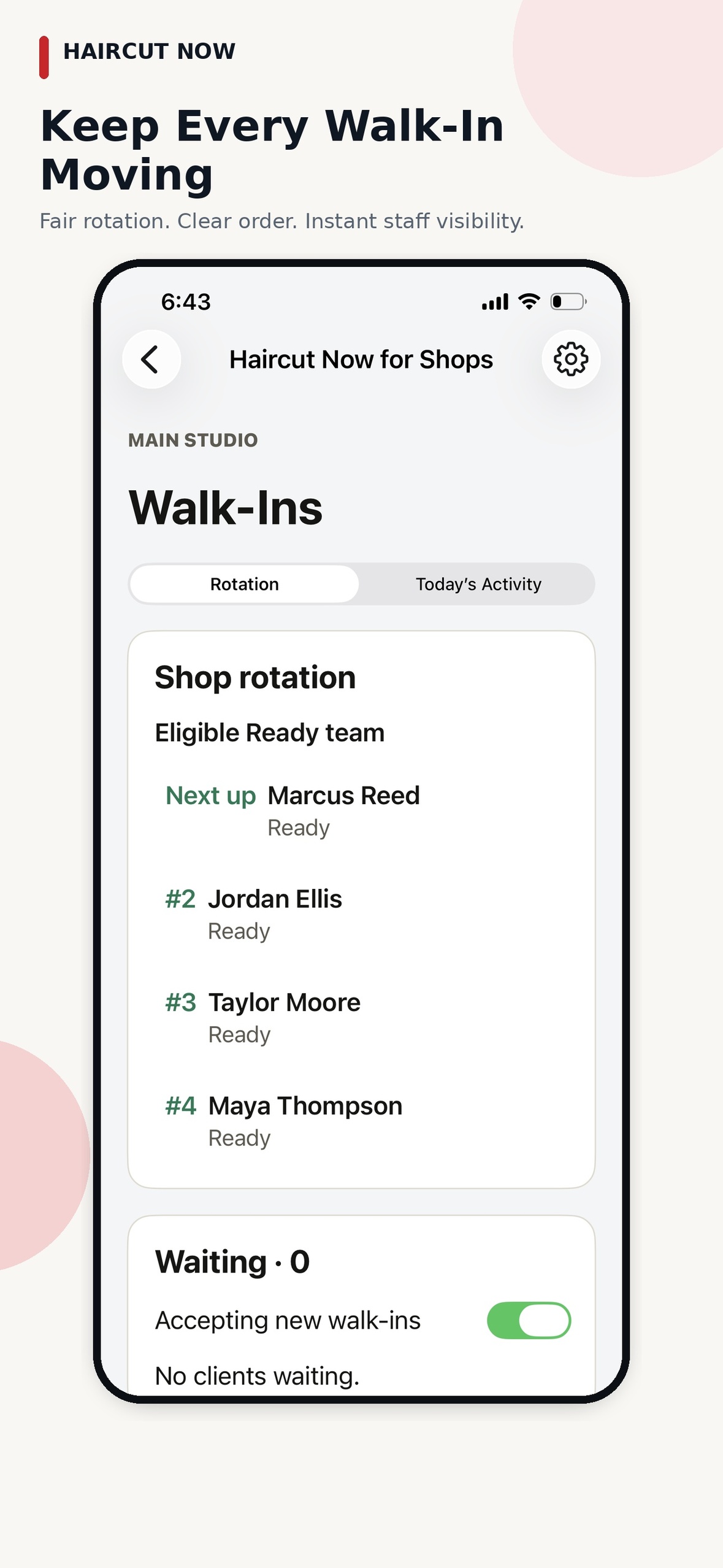
- Team members check in when they arrive. Their check-in order begins the fair automated round-robin.
- The client enters a name at the kiosk. The kiosk is browser-based and can run on an Apple or Android tablet, floor stand, or countertop setup.
- The next ready, eligible professional receives a mobile offer. That offer appears in the phone or browser home-screen app.
- The professional taps Accept or Pass. If they pass, their position is not erased from the rotation.
- If an offer is ignored, the system moves on. The app marks the professional Busy, and they tap Ready again when they want to resume receiving offers.
This is what makes the workflow useful for independent shops: the system keeps rotating without you standing at the front desk and manually reassigning every name.
How to think about service categories in practice
General shop advice: if your location offers multiple service types, write down clear rules before you launch the queue. A category setup works best when staff know exactly which services they can receive and which ones should route elsewhere. That keeps the client flow cleaner and helps reduce confusion at the chair.
In a walk-in shop, service categories can be especially helpful when:
- Some professionals specialize in certain services
- One service type usually takes more time than another
- You want to separate quick walk-ins from more specific services
- Your team wants a simple way to stay aligned on eligibility
Walk-In Manager gives owners the tools to set those categories and define staff eligibility. From there, the system uses the checked-in team and the service setup to keep offers moving in the right order.
What owners gain from a fair service-based queue
A fair rotation is not just about balancing opportunity. It also reduces day-to-day friction. In a booth-rent environment, nobody wants the front desk to become a negotiation point every time a client walks in. When the queue is organized by eligibility and service type, the shop can stay calmer and more predictable.
For owners, the value is in the time saved after setup. The system is designed to operate independently, so you are not expected to babysit the queue all day. The walk-in flow keeps moving even when someone passes on an offer or doesn’t answer right away.
That gives you a practical advantage if you manage a location without a receptionist. It also helps when the shop is busy and you would rather focus on the business than on manually deciding who should be next.
Handling missed offers and walkouts without losing the flow
In a live shop, not every offer gets answered instantly. Walk-In Manager handles that automatically. If an eligible professional does not respond, the system waits for the owner-configured unanswered-offer timeout of 30, 60, or 90 seconds, then marks that person Busy and continues the queue. When a client leaves, the barber can tap Walked Out, and the system handles the queue from there.
That matters when you are managing services with different speeds and different demand levels. A fair rotation still needs to keep the line moving, even if the next eligible person is finishing up, stepped away, or misses an alert. The system is designed to keep the schedule from stalling.
Using reports to understand service trends
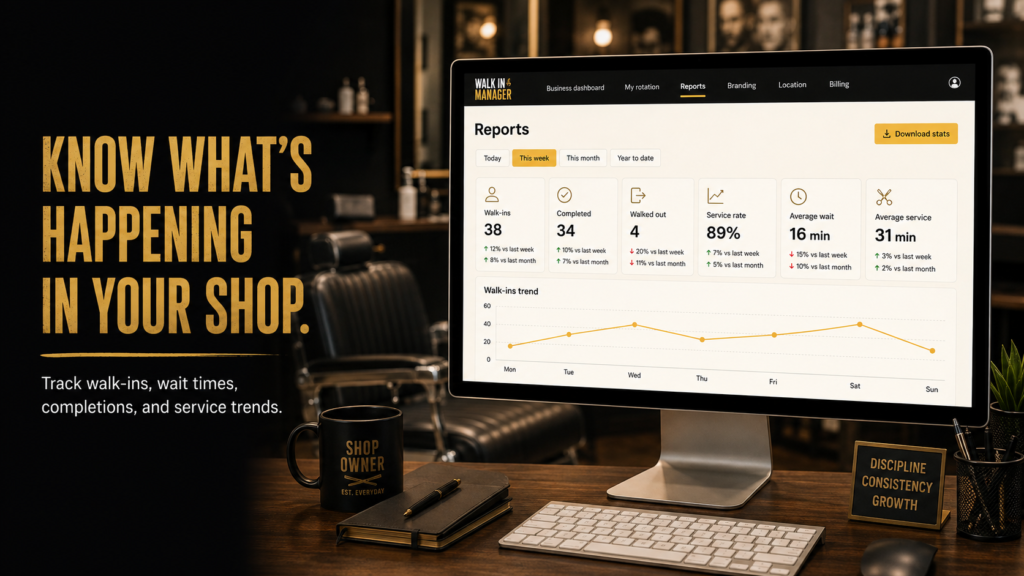
Walk-In Manager also includes reporting that can help you review what happened across the day or over time. Reports cover walk-ins, completions, walkouts, wait times, and service trends. It also includes configurable minimum service time and review/rebooking prompts.
For owners, that can help answer practical questions such as:
- Which service categories are seeing the most walk-ins
- How often clients leave before being served
- Which times of day create the longest waits
- Whether certain services are moving faster or slower than expected
Those insights are useful when you want to refine service categories, staff eligibility, or shop staffing habits over time.
Best setup tips for a booth-rent shop
If you are planning your own queue structure, keep the setup simple at first. A clean launch usually works better than a complicated ruleset that nobody remembers.
- Start with the services you actually offer. Build categories around real walk-in demand.
- Set eligibility clearly. Make sure each professional is matched to the services they can take.
- Keep the kiosk easy to use. Clients should only need to enter their name.
- Confirm team check-in habits. The rotation works best when professionals check in as they arrive.
- Review the reports after the first few days. Use the data to adjust service categories if needed.
Those are general shop-management best practices, and they fit especially well in an independent-chair environment where each professional may keep their own booking tools and customer relationships.
Who this setup is best for
Walk-In Manager is built for booth-rent and commission shops with one location and unlimited applicable team members. It is a strong fit when the owner wants a receptionist-free walk-in process and a fair rotation that respects service eligibility. It is also useful when professionals need a simple way to stay in their own rhythm while still sharing a shop-wide queue.
If your goal is to organize walk-ins by service type without turning the shop into a manual dispatch desk, this kind of setup gives you a cleaner operational lane.
Learn more here: Walk-In Manager
FAQ
How does Walk-In Manager handle different service types?
The owner can create optional service categories and set staff eligibility. When a client enters a name at the kiosk, the system uses the fair round-robin rotation to offer the walk-in to the next eligible checked-in professional.
Does the owner have to assign every walk-in manually?
No. After initial setup, the system is designed to operate independently. Team members check in when they arrive, and the queue advances automatically through eligible professionals.
What happens if a professional passes on an offer?
The professional can tap Pass, and their position in the rotation is not erased. The queue continues automatically.
Can the shop track walk-ins and service trends?
Yes. Reports cover walk-ins, completions, walkouts, wait times, and service trends, with additional configurable prompts and minimum service time settings.
Is this useful for booth-rent shops?
Yes. It is built for booth-rent and commission shops, especially where the owner wants a fair, automated walk-in flow without daily queue management.